
RoomCaddiethe home screen for your sim room
Your golf simulator shouldn't feel like a Windows PC.
RoomCaddie is a golf simulator launcher and home screen for Windows 11. One tap starts your launch monitor and simulator in order, plus everything else in the room, each on its own screen.
One-time purchase · 3 PCs · No subscription · 14-day refund
Already purchased? Download RoomCaddie


Built for the sim room, not the office.
Looks like a finished simulator, not a Windows PC
- Big tiles replace the desktop and its icons
- Your room's name and logo across the top
- Dozens of themes; one tap changes the whole room
- Scenes, icons or your own photos on any tile
One tap starts the round
- Simple, guided setup in minutes
- One tile starts your launch monitor, then your simulator, in the order you set
- Open a whole setup at once: every program you run together, one tap
- If you can double-click it, it can be a tile: golf, movies, games, streaming, music, websites
Every program on the right screen
- Pick each program's screen once; it opens there every time
- Even programs opened from inside another one, like your launch monitor's software, go to the screen you choose
Anyone can run the sim
- Tap GOLF and play: no hunting for programs
- Websites and streaming open full screen
- Shut down, restart or sleep the PC from inside RoomCaddie
- Optional: turn on the PC and RoomCaddie opens on its own
Works with your smart home
- Tap a tile and your smart home follows along
- Turn on the projector, set the lights, lower the screen, start the fan, the heat or the music
- Works with Home Assistant, or anything that takes a webhook
- Smart home features are optional
An idle screen for the room
- When nobody is playing, the room shows its name, the clock and your photos
- Your own logo on it too
- Or one league's standings, so players see who is winning between rounds (coming soon)
- The first touch brings the tiles back and never starts anything
- No account. No subscription. No tracking.
- $49, one time
- One key for up to three of your own PCs
House leaguesComing soon, very soon
Run a league on your own sim.
Scores come straight off GSPro's card, and the standings go up on the big screen.
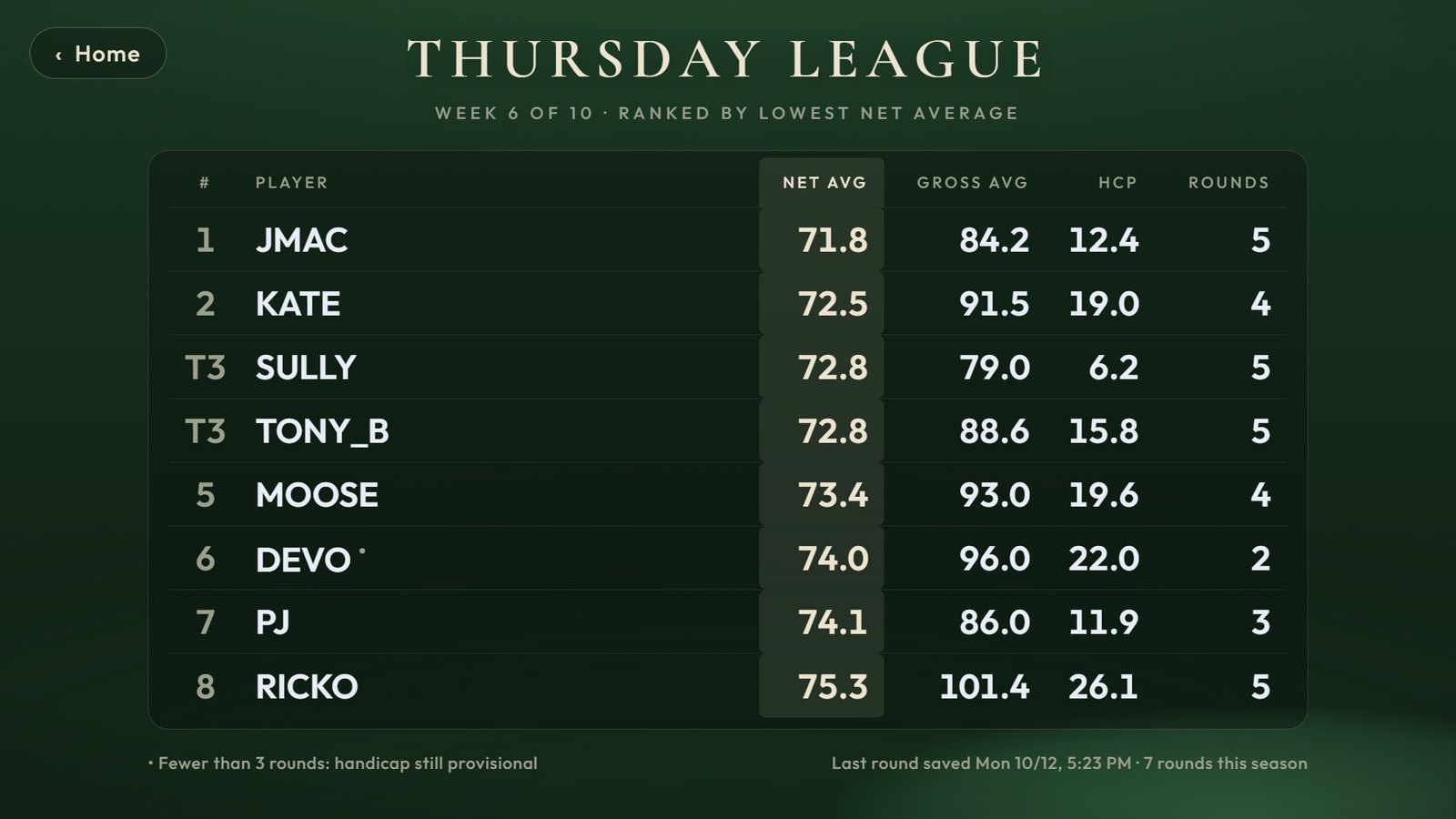
Scores off the card, standings on the screen
- Press one key at GSPro's final scorecard; RoomCaddie reads the scores off the screen. Nobody types a score.
- Standings with gross and net, handicaps and rounds played, ranked the way your league plays
- Each league gets its own tile: tap it and the standings fill the screen, big enough to read from the hitting bay
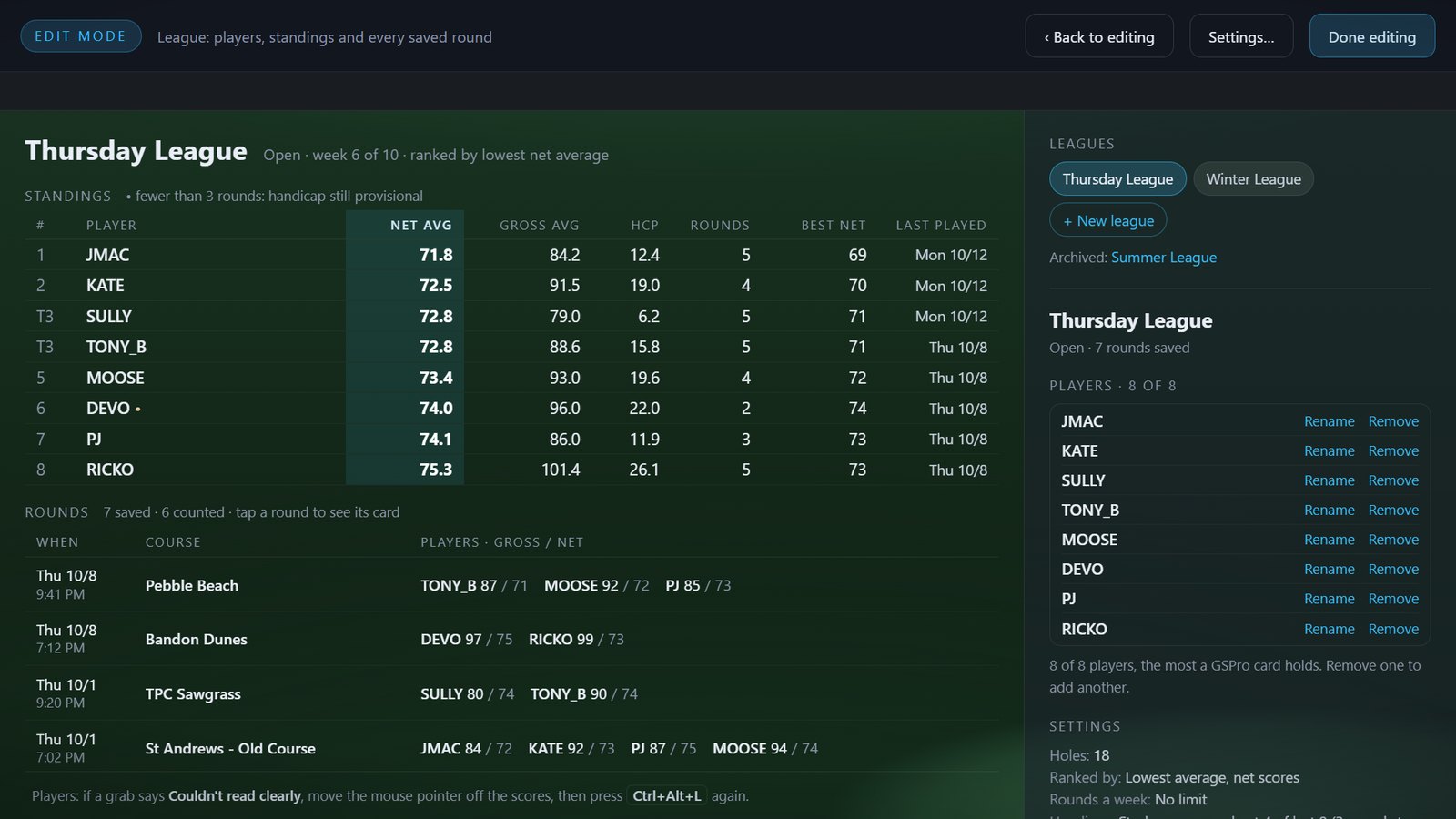
Every round kept, with its scorecard
- Set up a league in the editor: its players, 9 or 18 holes, and how it ranks
- Every saved round keeps the picture of its card; the same card never counts twice
- A set number of weeks or rounds, or no end at all, for up to eight players
Courses
Your course library, under control.
See every GSPro course on your PC, keep the ones you play, and free up the space.
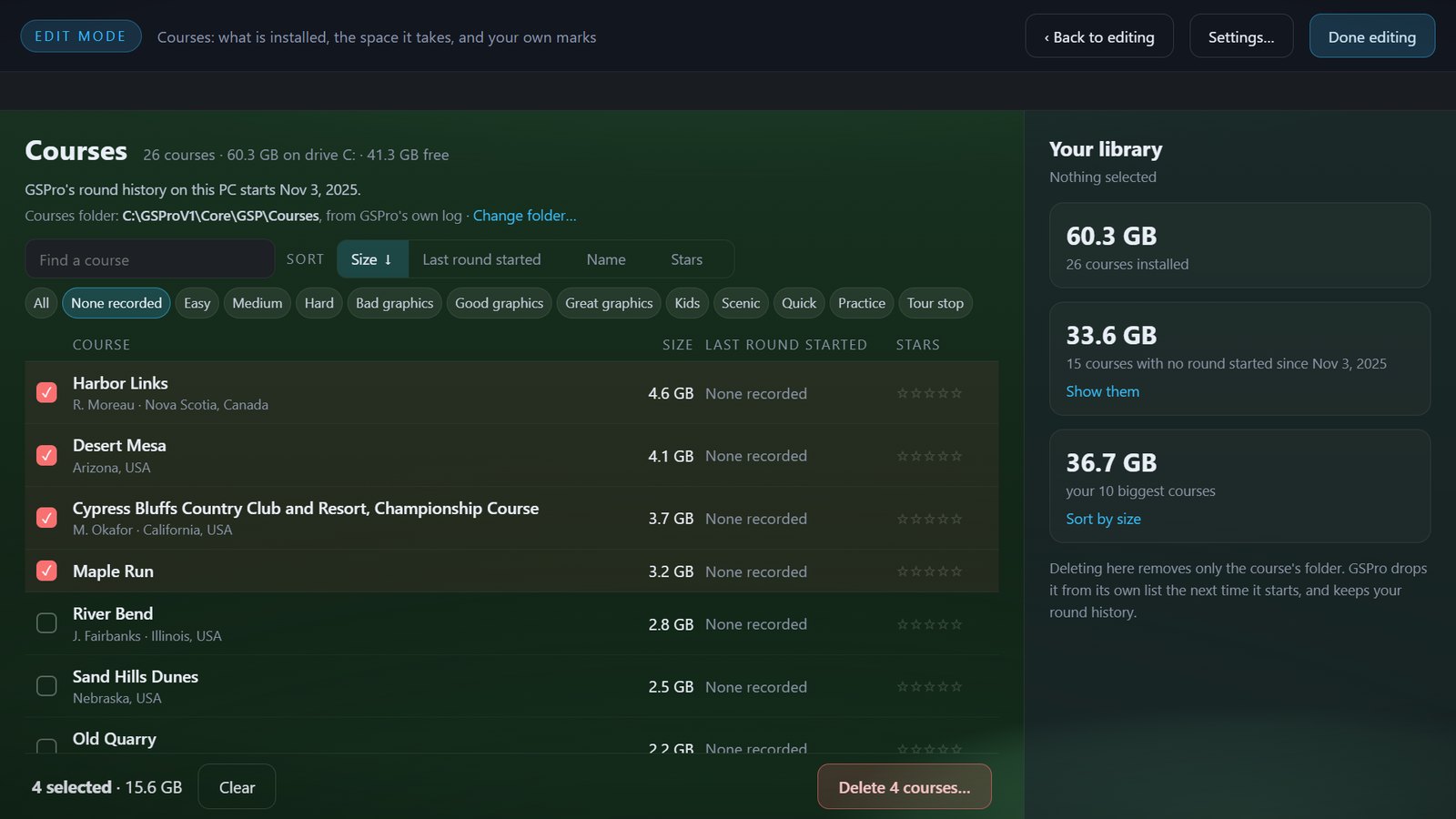
Manage your courses and free up space
- Every GSPro course on your PC, with its size and when a round was last started
- Sort by size, last round, name or stars
- Tick several and delete them at once to free up space
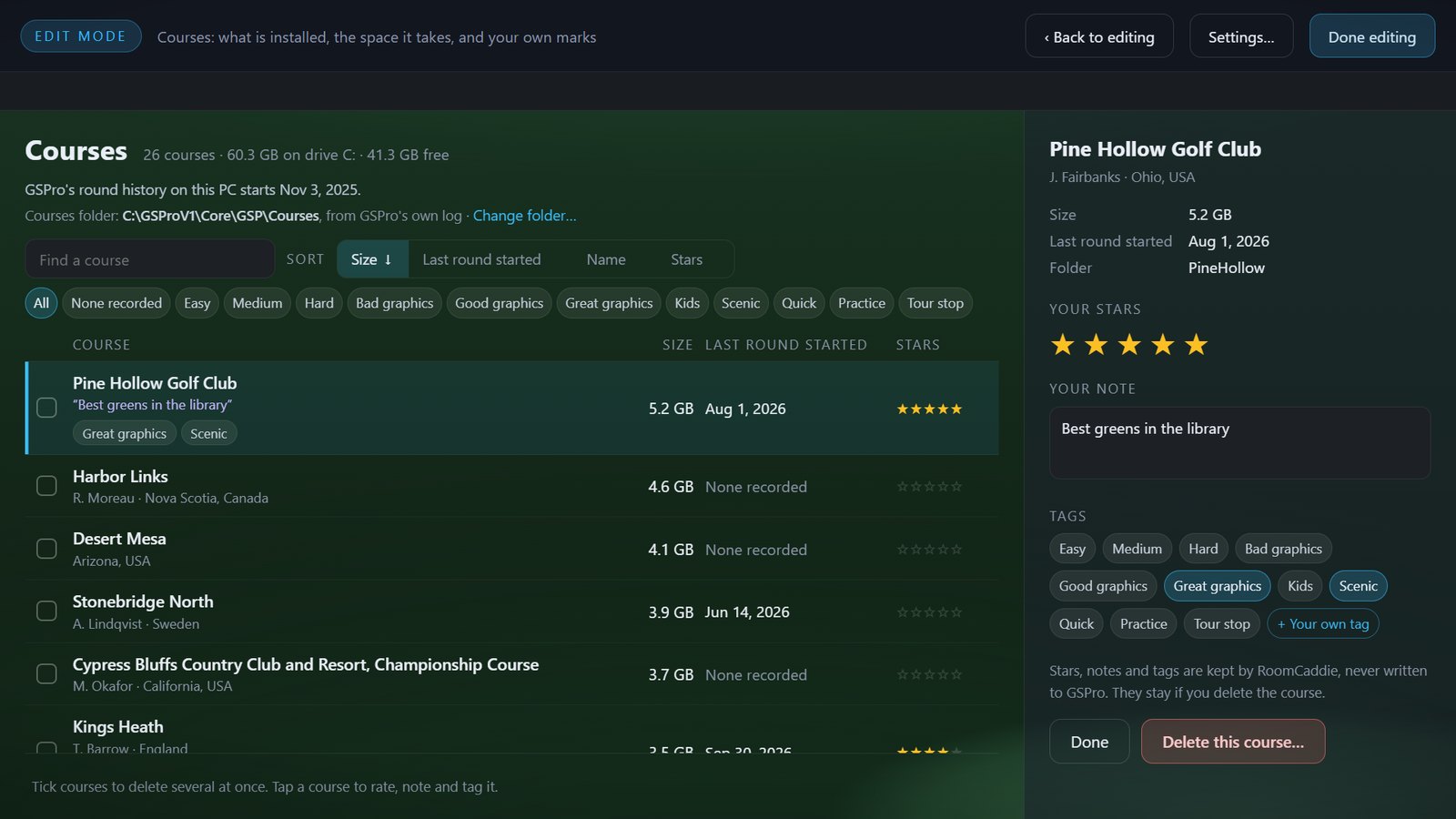
Your own marks on every course
- Your own stars, notes, and tags on any course
- Filter the list by a tag: Easy, Scenic, Tour stop, or one of your own
- Kept in RoomCaddie, never written into GSPro's files
 12:33
12:33
Reviewed on YouTube
“For someone that just comes in and plays sim golf, this is phenomenal. This is something that you absolutely need to have.”
Jacob Proffitt, 2nd Flight Golf · Watch the full review
Questions
The short answers.
Does it work with my simulator?
Yes: RoomCaddie launches any program on your PC. It was built around a golf simulator with an overhead launch monitor, as one tile that starts both. Supported setups lists what has been run with it.
I have more than one screen. Which one does RoomCaddie use?
RoomCaddie itself lives on the screen Windows calls the main display. Each program can have a screen of its own: pick it once, and RoomCaddie moves the program there as it opens and keeps it there.
What does it send anywhere?
Two small requests. When you first enter your key, RoomCaddie checks it with our store; once a week after that, it checks the key again and asks roomcaddie.com whether a newer version exists. And, only if you set it up, a smart home signal to your own hub (how it works). No analytics, no crash reporting, no account. The privacy policy lists exactly what each one carries.
What is the Courses page?
In the editor, Courses... beside Settings...: every GSPro course on this PC with its size, designer and location, and when a round was last started on it, from GSPro's own round history. Sort by size, last round started, name or stars, and give any course stars, a short note and tags.
What do you want to see in future RoomCaddie updates?
Email your idea to [email protected].
The full FAQ, the quick start and the support scope are one click each below.
Your sim room, finished.
One-time purchase · 3 PCs · No subscription · 14-day refund
Already purchased? Download RoomCaddie
The key and the download arrive by email within minutes. Windows 11. English. Sold worldwide.