
Works with your smart home devices
 0:45
- Trigger your smart home with a tap on a tile
- Turn on the projector, set the lights, lower the screen or start the fan, heat or music
- Connect Home Assistant or anything that accepts a webhook
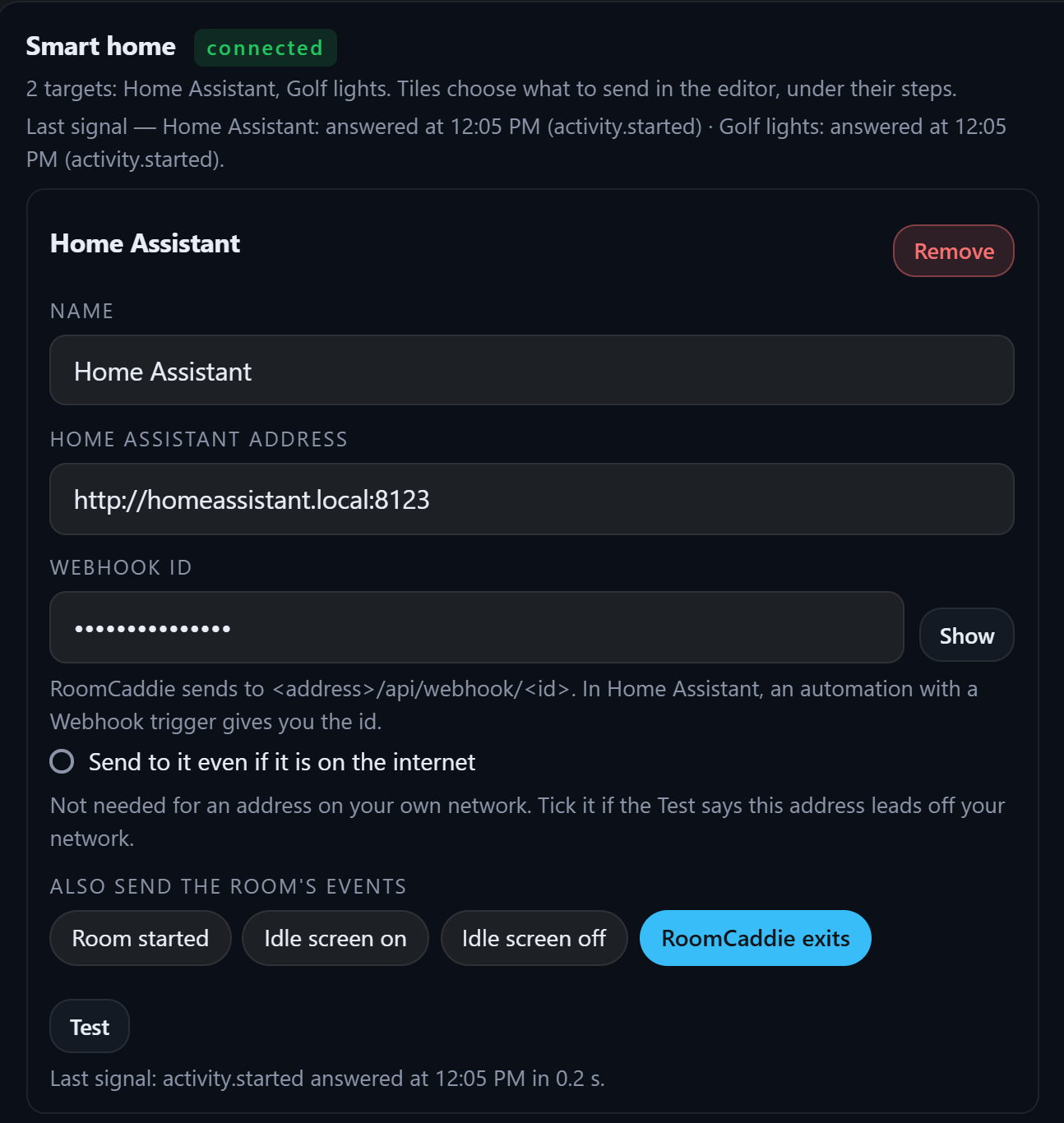
Connect Home Assistant
- For Home Assistant, you need its address (often "http://homeassistant.local:8123") and a webhook id. You get the id from a Home Assistant automation with a Webhook trigger.
- On a connection, under Also send the room's events, tap the events you want to send: Room started, Idle screen on, Idle screen off, RoomCaddie exits.
- After you save, the webhook id and URL are hidden like a password. Press Show to see them.
- RoomCaddie sends signals during launch without delaying it. A hub that doesn't answer never holds up the room.
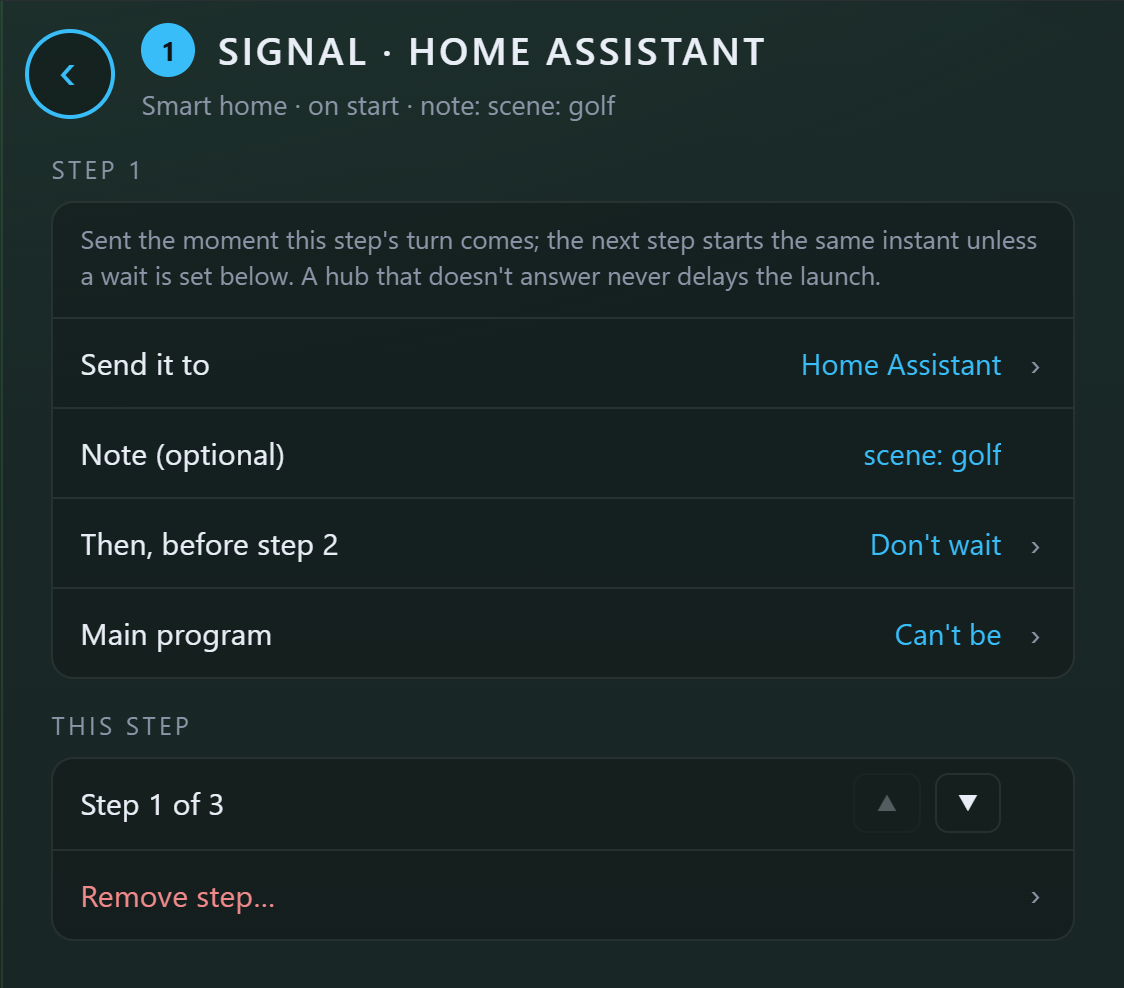
Make a tile tell your smart home it started or ended
- In the editor, open a tile that launches a program. Under its steps, press Set up… on the Smart home row.
- Tap "On start" to send a signal as soon as the tile launches.
- Tap "On end" to send a signal when the tile ends, including how many minutes it ran.
- If you want, enter a Note (optional), such as "scene: golf". Your automation can read it.
- To send a signal at a specific point during launch, with its own wait, press + Add another program and choose Send a signal.
Your sim room, finished.
Buy RoomCaddie · $49
- No account. No subscription. No tracking.
- $49, one time purchase, 14-day refund
- One key for up to three of your own PCs
Already purchased? Download RoomCaddie
The key and the download arrive by email within minutes. Windows 11. English. Sold worldwide.