
Phone remote
Control RoomCaddie, your PC and your golf sim from your phone or tablet.
Start a tile, type, move the pointer, take a mulligan or read the green from your phone without walking to the keyboard. You choose the buttons, layout and color in GSPro and Pureplay.
 0:27
Customize your phone remote in the editor
- Select the Phone remote tile in RoomCaddie's editor and press Edit layout
- Turn a page off or put your favorite page first
- Make a button wider or bigger, move it up or down, or hide it
- Pick one of 12 colors or let your remote follow your room's theme
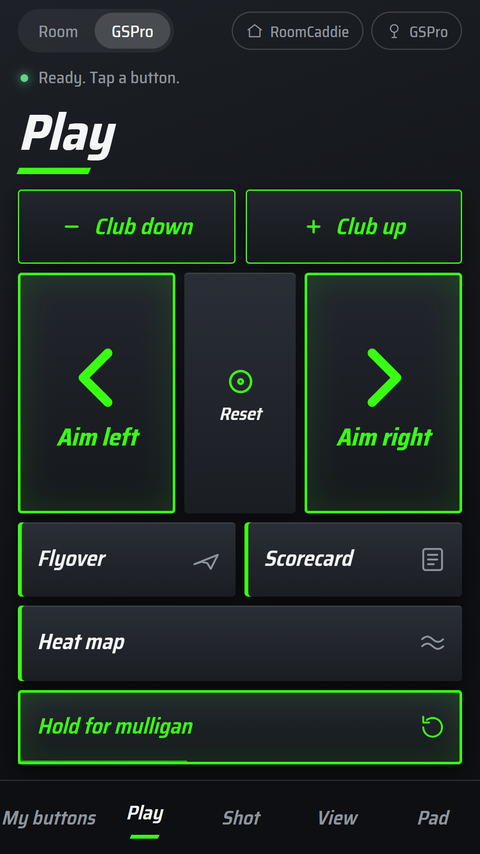
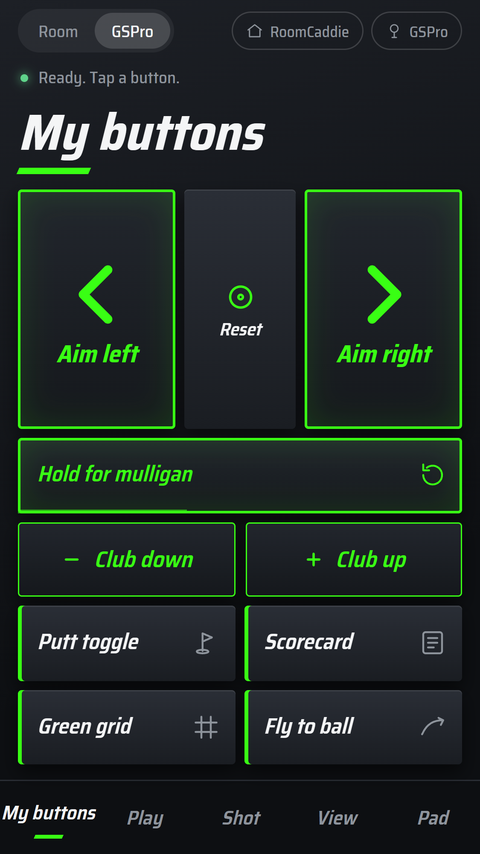
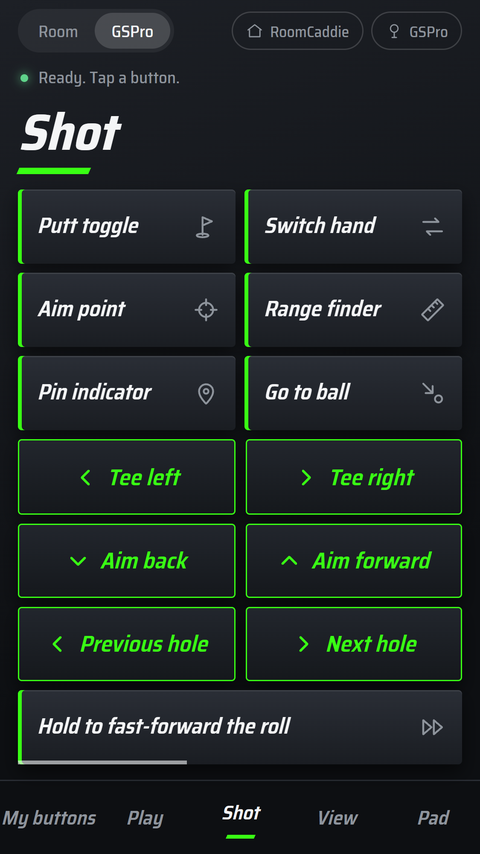
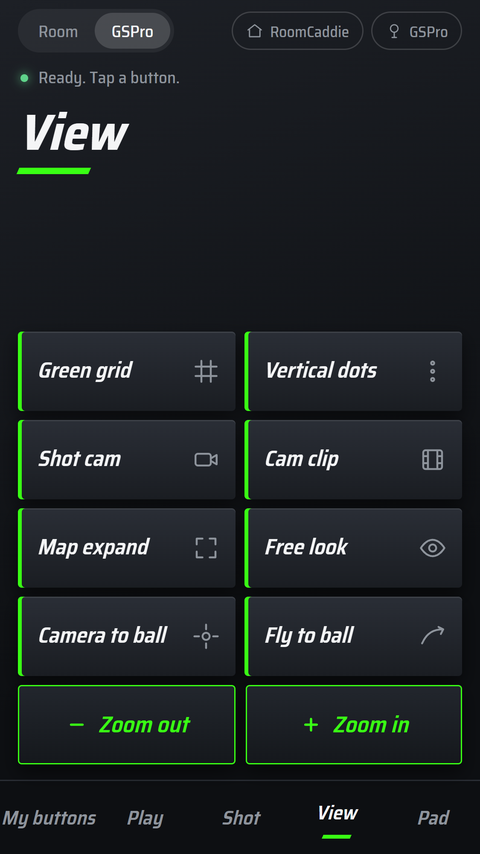
GSPro's buttons pictured
Phone remote
Your sim's buttons get a new look for GSPro and Pureplay
- Use Play for aim, club up and down, flyover, scorecard, Heat map and mulligan
- Use Shot and View for GSPro's other shortcut keys, from putt toggle to shot cam
- Keep your favorite buttons together on the My buttons page
- Pad has a touchpad for moving the PC's pointer and clicking, plus the display and sound keys
- A mulligan takes a one-second hold, so an accidental tap never takes back a good shot
- Start GSPro, Pureplay, Infinite Tees, ShotForge or Muni Golf. Your pages switch to that game's buttons
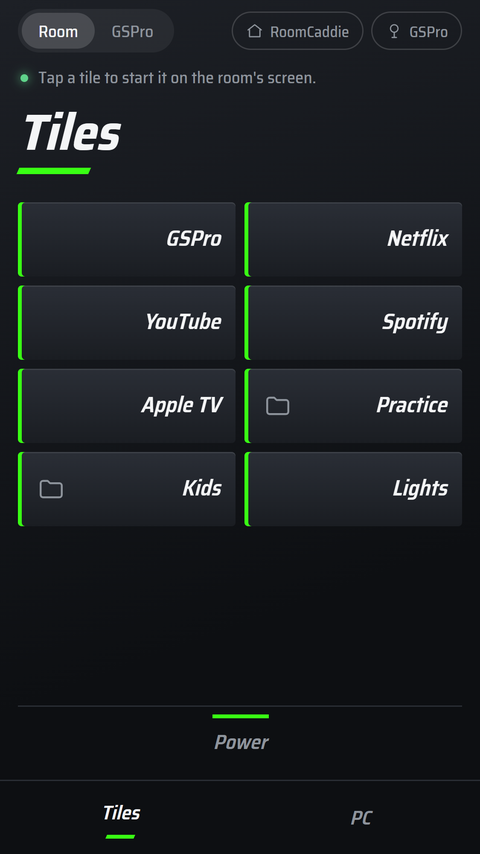
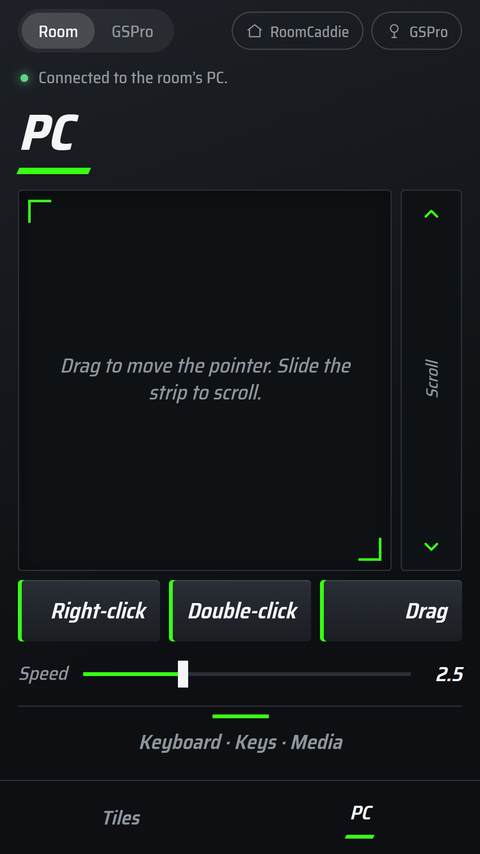
Room
Scan once, then run the room from the mat
- Start any tile from your phone, or put the PC to sleep, restart it or shut it down
- Use a touchpad, a keyboard and media keys in any program on the PC
- One tap brings RoomCaddie or GSPro to the front
- Switch the remote on in Settings, add the Phone remote tile and scan its code with your phone's camera
- No app needed. The remote is a page in your phone's browser. Add it to your home screen to open it with one tap
- Pair up to 20 phones in one room. Remove any of them in Settings
Your sim room, finished.
Buy RoomCaddie · $49
- No account. No subscription. No tracking.
- $49, one time purchase, 14-day refund
- One key for up to three of your own PCs
Already purchased? Download RoomCaddie
The key and the download arrive by email within minutes. Windows 11. English. Sold worldwide.