
Your own customizable home screen
 0:38
- Make your simulator look finished, not like a Windows PC
- Replace the Windows desktop and icons with a home screen you can fully customize
- Choose from dozens of themes and hundreds of different looks, and switch looks with one tap
Start your round with one tap
- Start golf night, movie night or game night with one tap
- Start several programs with one tap, each on the screen you choose
- Shut down, restart or put the PC to sleep without leaving RoomCaddie
Helper apps open on the screen you pick every time
- Keep helper windows from popping up on your projector
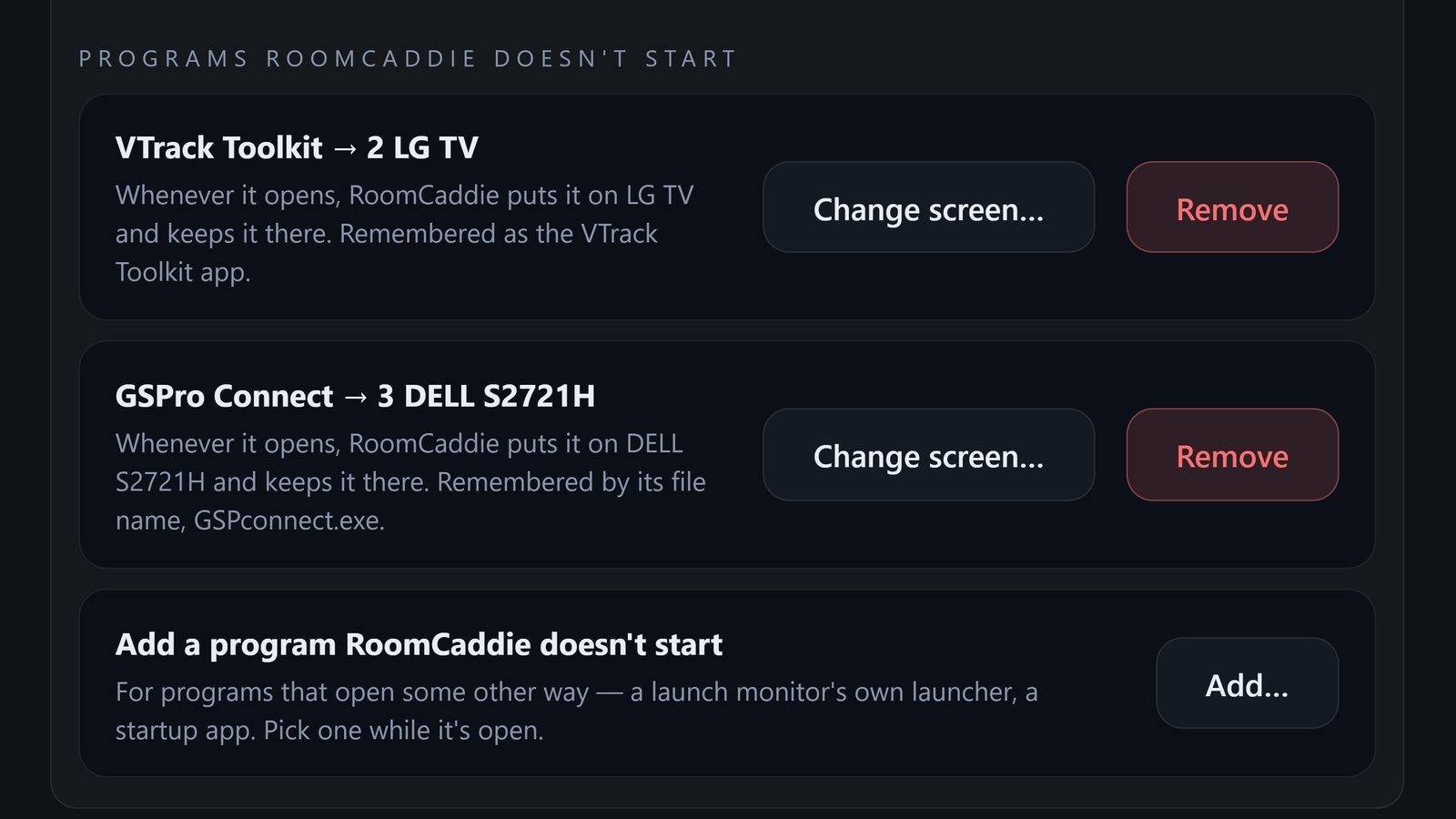
- Your launch monitor's app, such as the VTrack Toolkit, or GSPro Connect opens on your chosen screen every time
- Pick from your open programs and choose a screen for each, up to 20 programs
Your other screens
Every screen in your room, themed and in place.
Your spare TVs and monitors show your theme and room name. Your helper apps stay on the screens you choose.

Your other screens show your theme
- In Settings, tap Screens. Choose which screens show your theme instead of the Windows desktop
- Put your room's name in each screen's middle using the theme's lettering. Your logo sits above it
- You choose which screens to apply it to
Your helper apps stay where you put them
- When your launch monitor's app opens another program from within, RoomCaddie puts it on your chosen screen
- Open your program as usual. Pick it from the list of open programs and choose its screen
- Whenever your program opens, however it starts, RoomCaddie puts it on your chosen screen and keeps it there
Your sim room, finished.
Buy RoomCaddie · $49
- No account. No subscription. No tracking.
- $49, one time purchase, 14-day refund
- One key for up to three of your own PCs
Already purchased? Download RoomCaddie
The key and the download arrive by email within minutes. Windows 11. English. Sold worldwide.